How to load a card using the chatbot
The QuickGrab chatbot (Aura 🤖) is your convenient assistant for loading UBA Visa prepaid cards and ACCESS Master prepaid cards from the comfort of your home.
Follow this step-by-step guide to successfully load your card.
Getting Started
Initial Contact: Simply text "Hi", "Hello", or any message to start your conversation with Aura.
Pro Tip: You can type "Reset" at any point during the process to return to the main dashboard.
Step 1: Language Selection
When you first contact the bot, you'll be prompted to choose your preferred language:
Prompt: "Please choose your language / Veuillez choisir votre langue:"
• Type 1 for English
• Type 2 for French
The bot will remember your language preference for future interactions.
Step 2: Welcome & Account Access
After selecting your language, you'll see the welcome message with options:
Choose one of the following:
1. Create New Account - If you're a new user
2. Login Into Account - If you already have a QuickGrab account
3. Exit - To end the session
For Login (Existing Users):
1. Enter your email address when prompted
2. Enter the secure login code (6 or 8 digits) sent to your email
• If you don't receive the code, type "Resend" to get a new one
3. Once verified, you'll be taken to your QuickGrab dashboard
For New Users:
Follow the registration process to create your QuickGrab account first, then proceed with login.
Step 3: Service Selection
After successful login, you'll see your QuickGrab dashboard with these options:
1. visa/master - For card services (Select this option)
2. DSTv Services - For DSTv subscriptions
3. TopUp Account - To add money to your QuickGrab balance
4. QuickGrab Balance - To check your account balance
5. Change Language - To switch languages (french / english)
6. Logout - To end your session
Select option "1" or type "visa/master" to access card services.
Step 4: Card Services Menu
You'll now see the Card Services menu:
1. Load a Card—Select this option.
2. Add a New Card - To save a new card for future use
3. Go Back to Services - Return to main dashboard
4. Logout - End your session
Select option 1 or type "Load a Card".
Step 5: Card Information
Client ID Entry
• Enter your 10-digit Client ID that starts with "00"
• The Client ID is found on the back of your card
• Format: 00xxxxxxxx (10 digits total)
If the card is not found in your saved cards, you'll be prompted:
• Type "Yes" or (1) to add the card to your account
• Type "Change clientId" or (2) to enter a different Client ID
Adding New Card Details (if required):
1. Cardholder Name: Enter the full name as printed on the card
2. First Six Digits: Enter the first 6 digits of your card number
3. Last Four Digits: Enter the last 4 digits of your card number
The system will automatically detect your card type (Visa/Mastercard) and save it for future use.
Step 6: Load Amount
Enter the amount you'd like to load onto your card.
Important Limits:
• Minimum: 2,000 FCFA
• Maximum via Mobile Money: 475,000 FCFA
• Maximum via QuickGrab Balance: 800,000 FCFA
Step 7: Payment Method Selection
Choose your preferred payment method:
1. MTN Momo - Pay with MTN Mobile Money
2. Orange Money - Pay with Orange Mobile Money
3. Account Balance - Pay from your QuickGrab account balance
For Mobile Money (MTN/Orange):
• Enter your mobile money number when prompted
• The system will calculate processing fees automatically
For QuickGrab Balance:
• The system will check if you have sufficient balance
• If insufficient, you'll have options to:
1. TopUp your QuickGrab account first
2. Pay with Momo instead
3. Exit the transaction
Step 8: Transaction Confirmation
You'll see a summary showing:
• Load Amount: Your requested amount
• Platform Charges: Service fees
• Processing Fees: Mobile money fees (if momo is payment choice)
• Total Amount: Final amount to be charged
Confirm your transaction:
• Type "Proceed" or "1" to continue
• Type "Go Back" or "2" to return to services
• Type "Cancel Process" to cancel entirely
Step 9: Payment Processing
After confirming:
• The system will process your payment automatically (dial *126# (mtn) or #150# (Orange) to confirm payment)
• You'll receive a message on the transaction status
• Processing time: Typically 10 seconds to 2 minutes
Possible Outcomes:
✅ Success:
• "Hurray! Card successfully loaded."
• Check your email for confirmation
• Options to load another card, go to services, exit or Type "Reset" to return to the Dashboard
❌ Failed:
• Options to retry payment or cancel
• Choose "Retry" to attempt payment again
• Choose "Cancel" to return to main menu
Important Notes
• Type "Reset" at any point to return to the main dashboard
• Check your email for transaction confirmations
• Save your cards for faster future transactions
• Secure process - All transactions are encrypted and secure
• Session timeout - Sessions expire after inactivity for security
Support
If you encounter any issues:
• Try typing "Reset" to start fresh
• Ensure your Client ID is correctly formatted (10 digits starting with 00)
• Verify your email address is correct for OTP delivery
• Contact QuickGrab support if problems persist
Happy Loading! 🎉
The QuickGrab chatbot is available 24/7 to help you load your prepaid cards quickly and securely.
Related Articles
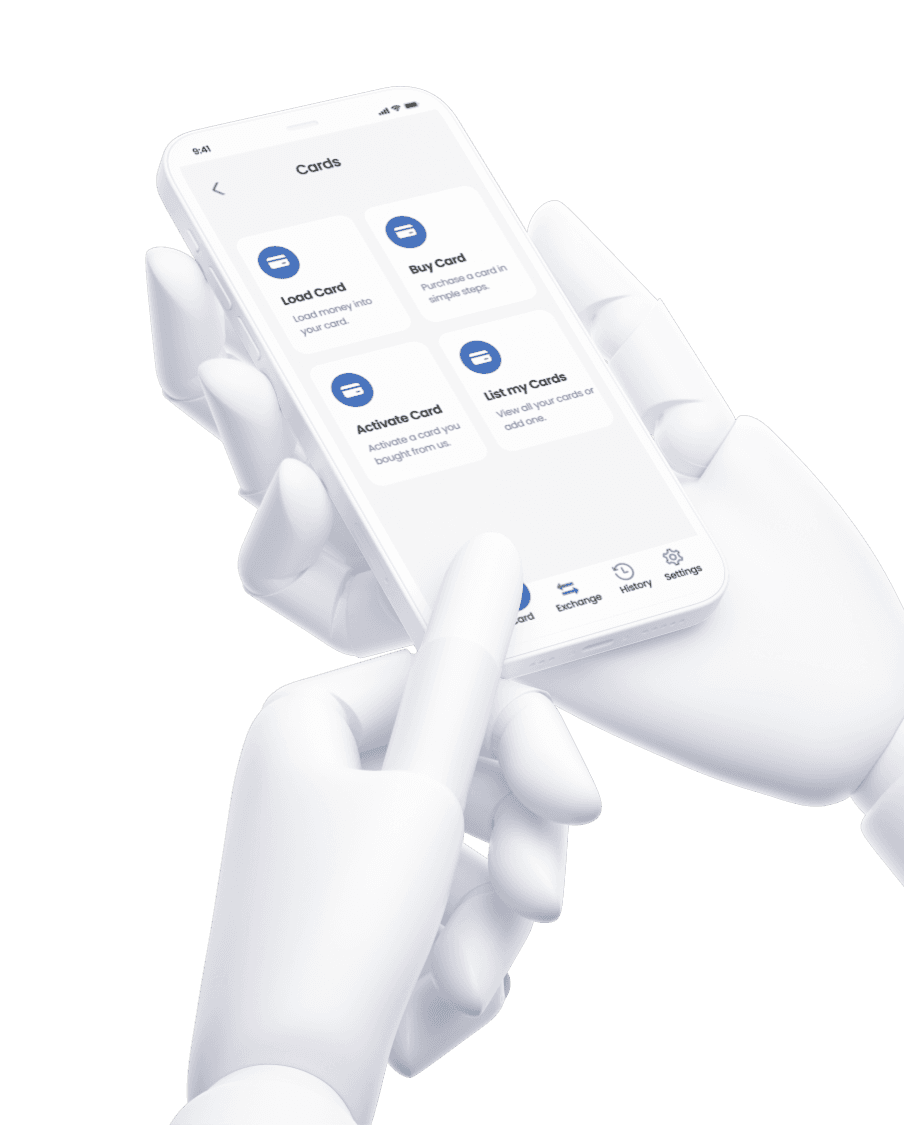
Learn how to easily load your Visa or MasterCard using Quick Grab. Step-by-step guide to help you top up your card securely and quickly with multiple payment options.